🖥️ Local Server API Setup with SoifGo
1 Download and Start the Server
📦 Prerequisite: Install Node.js
You can install it using the file provided in your folder:
📦 Download Node.js v22.17.1 (MEGA)Or download the latest version from the official website:
- All required npm packages have already been installed.
- You do not need to run
npm installagain. - Everything needed to run the server is inside the folder:
server.jsnode_modules/(all dependencies)Start server.bat(for easy launch)
- Simply extract the ZIP file and double-click on Start server.bat.
- The server will start immediately without any extra setup.
Download the following ZIP file and extract it:
📦 Download Local_Server.zip (MEGA)After extraction, click on Start server.bat to launch the Local Server on your computer.
If successful, you will see a message like this:
{"level":30,"time":1761753122527,"pid":9856,"hostname":"ssm","msg":"Server listening at http://192.168.224.1:3000"}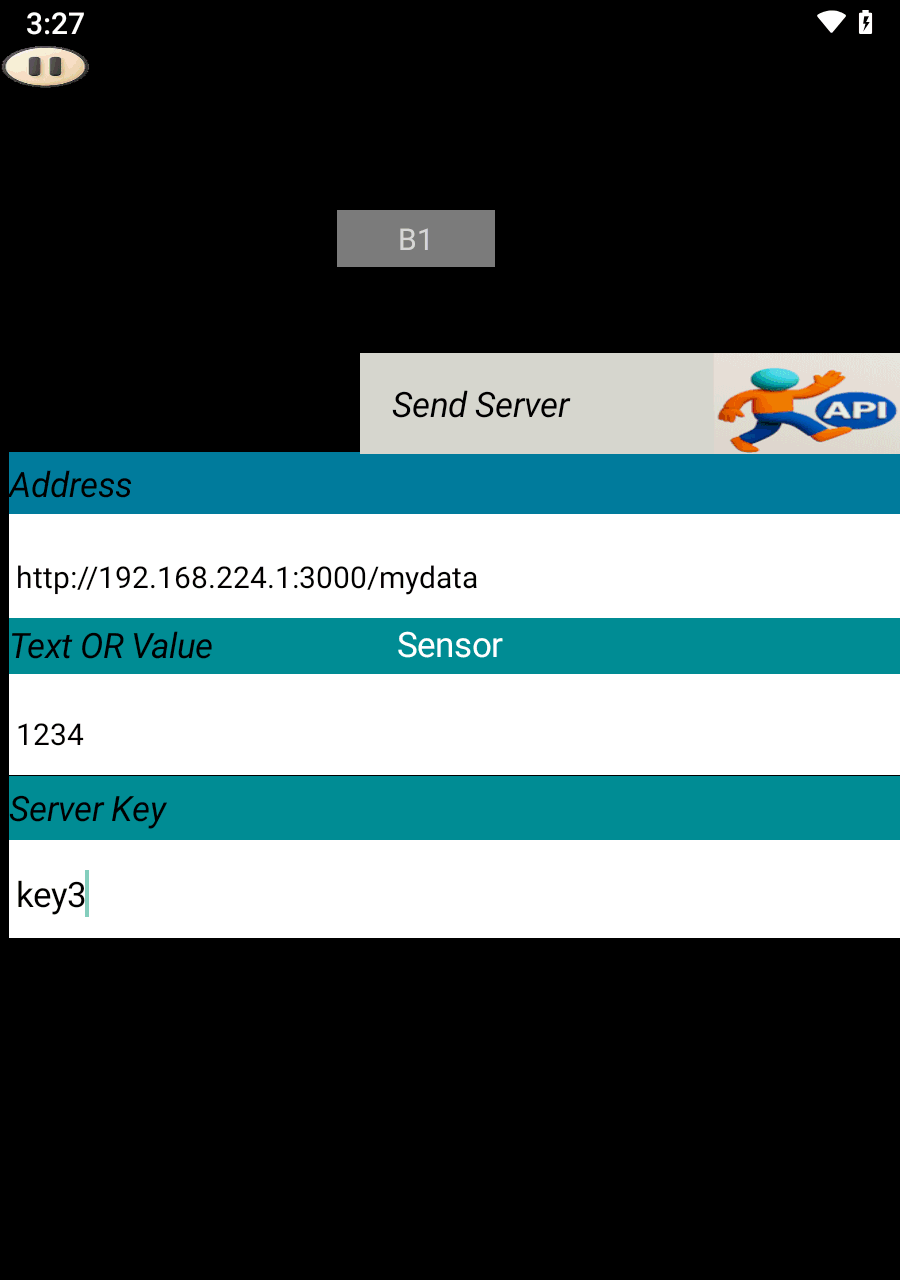
2 Sending Data from SoifGo
Open SoifGo and create a button. Set its behavior to Send Server.
In play mode, clicking this button will send the value 1234 to the server.
You can verify the result by visiting the following address in your browser:
You should see:
{"key3":"1234"}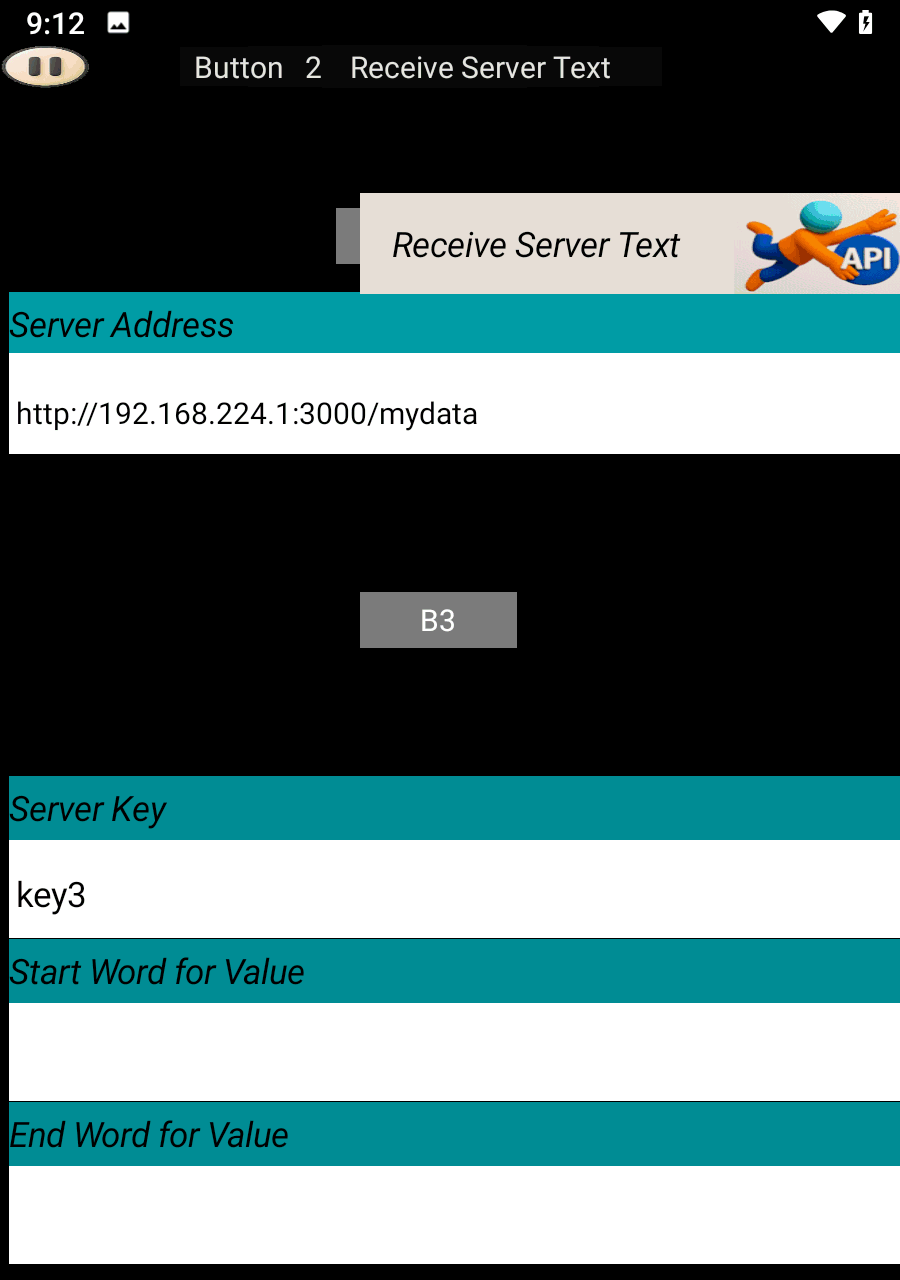
3 Receiving Data in SoifGo
Create another button and set its behavior to Receive Server Text.
If your server response includes extra characters, you can use the Start Filter and End Filter fields to extract the desired part.
If no filtering is needed, leave those fields empty.
4 Using Effects with Received Values
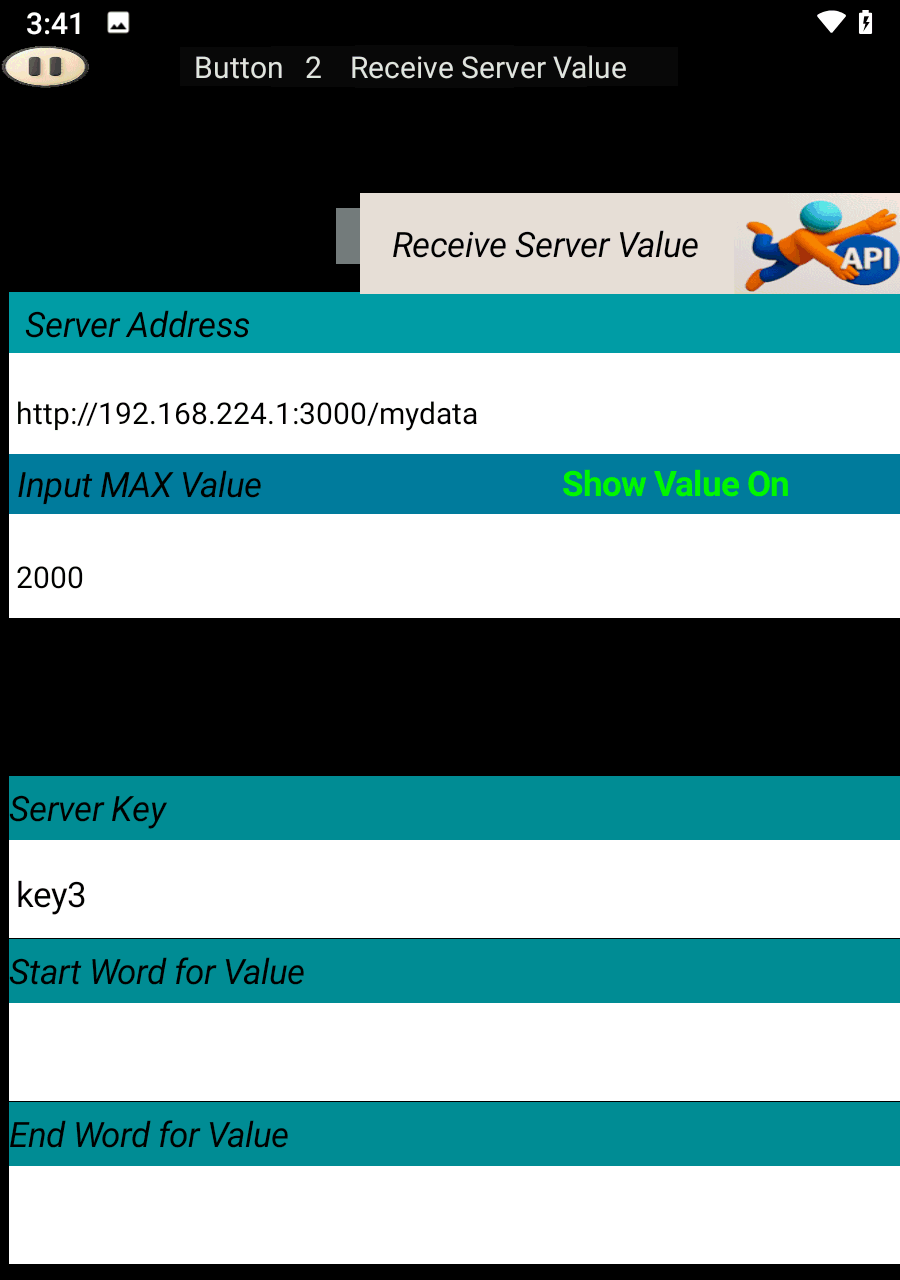
If you want to trigger visual effects based on received values, set the button behavior to Receive Server Value and specify the Maximum Value.
Once configured, effects will appear in the menu.
To learn more about applying effects to buttons, visit the following link:
🎨 Effects Tutorial5 Advanced Filtering
If extracting an API key does not work due to malformed data, simply leave the key field empty to receive the entire dataset. Then specify the word or phrase that comes before and after the desired value.
The system will filter the data between those markers and display the extracted result.
🧩 Bonus: Send & Receive via WebView (HTML)
Besides the classic method above, you can also send and receive data using an HTML page running inside SoifGo's WebView. This gives you full control over the layout, parsing, and behavior — perfect for dashboards and custom UIs.
window.soifgo is automatically injected.
You can call native functions directly from JavaScript:
// Send data (POST)
window.soifgo.CallSub('api_send', true, address, key, value);

// Receive data (GET) — response arrives in api_rx()
window.soifgo.CallSub('api_recive', true, address, key);

function api_rx(value) {
    // handle the value here
}
window.api_rx = api_rx;
The WebView method also lets you combine API + Bluetooth + MQTT + Sensors + Storage on a single page. For complete documentation, examples, and ready-to-use code, see the full HTML guide:
📘 Open the Full HTML Guide6 Troubleshooting Connection Issues
❌ "ERR_CONNECTION_TIMED_OUT" or nothing happens
If the browser on your PC opens the server address fine, but SoifGo on your phone cannot connect, the most common cause is the Windows Firewall blocking the port.
- Server is running and shows
Server listening at http://192.168.x.x:3000 - Browser on the same PC opens the URL without problems
- But SoifGo on the phone shows
ERR_CONNECTION_TIMED_OUTor nothing happens
🛠️ Fix on Windows
- Open Command Prompt as Administrator
(Right-click → Run as administrator) - Run this command (replace
3000with your server port if different):
netsh advfirewall firewall add rule name="Local Server 3000" dir=in action=allow protocol=TCP localport=3000- You should see
Ok. - Restart your server (close and run
Start server.batagain) - Test again from SoifGo
🔍 Additional checks
- Make sure your phone and PC are on the same Wi-Fi network
- On your router, disable AP Isolation or Client Isolation (if enabled, devices cannot see each other)
- In Windows: Settings → Network → Wi-Fi → Network profile must be Private, not Public
- Temporarily disable antivirus or VPN software and test again
- Open the server URL in your phone's browser first — if it works there, SoifGo will work too
💡 Why does this happen?
Windows Firewall blocks incoming connections on non-standard ports by default.
Even though localhost works on your PC, other devices on your
local network (like your phone) are blocked until you allow the port.
📌 IP address changed?
Your PC's IP address may change after a router restart. If the server URL worked before but now doesn't, check the current IP:
ipconfig
Look for IPv4 Address and update the address in SoifGo if needed.
For a permanent solution, set a Static IP for your PC in
the router settings or in Windows network settings.
📊 Quick Reference
| Problem | Cause | Fix |
|---|---|---|
| Connection Timeout | Firewall blocks port | netsh command |
| Data not found | Key not saved yet | Send data first |
| Works on PC, not on phone | Firewall or AP Isolation | Open port, disable isolation |
| Worked before, now doesn't | PC IP changed | Check ipconfig |
Important Note
This example is configured using a local Node.js server in public and free mode. For better security, it is recommended that you create your own private path with a username and password, and then apply those credentials in Soifgo as well.
- If two or more phones are supposed to control the same device, each must have a unique ID. Otherwise, you will encounter problems.
- If you still insist on using this free/public method, you must change the topic names.
- Don't forget that the topic names on the server must also be updated and kept in sync.